This site uses cookies to enhance your user experience. By clicking any link on this site you are giving your consent to our cookie policy. Read more
Reject
Accept All

Advertiser and Editorial Disclosures

Drawing Apps: Draw, Sketch Pad

Drawing Apps: Draw, Sketch Pad

verified Verified App

Developer: Photo Editor Apps Maker Studio

  • category

    Category: Art & Design

  • price

    Price: 0

  • age rating

    Age Rating: Everyone

  • rating

    Rating: 4

  • download

    Downloads: /

  • version

    Version: 1.8.8

Screenshot 1
Screenshot 2
Screenshot 3
Screenshot 4
Screenshot 5
Screenshot 6
Screenshot 7
Screenshot 8

Features & Highlights

Customizable Canvas Sizes

With customizable canvas sizes, you can create artwork that fits your specific vision. Whether you're sketching a small doodle or working on a large-scale project, the flexibility of canvas dimensions lets you express your creativity freely.

Diverse Brush Options

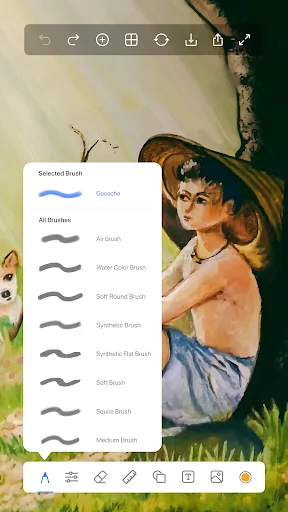
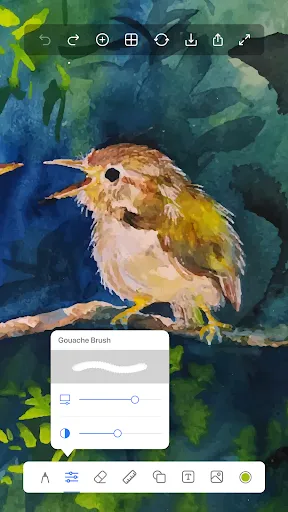
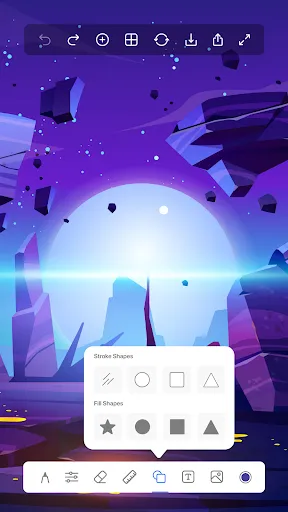
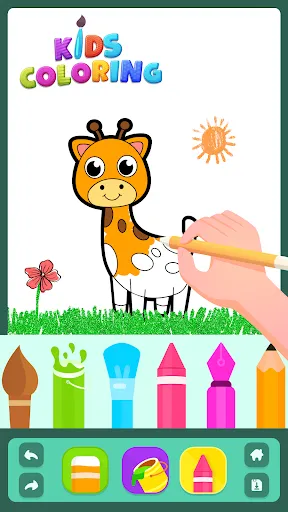
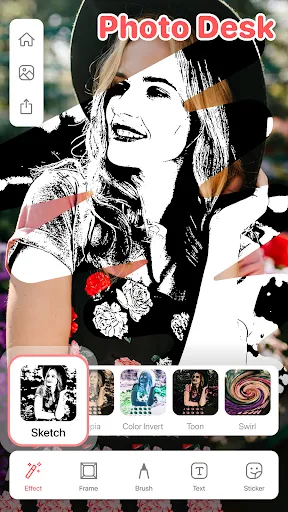
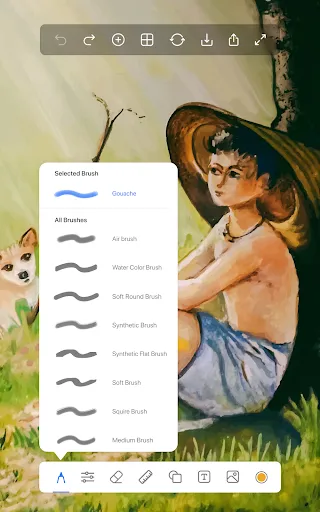
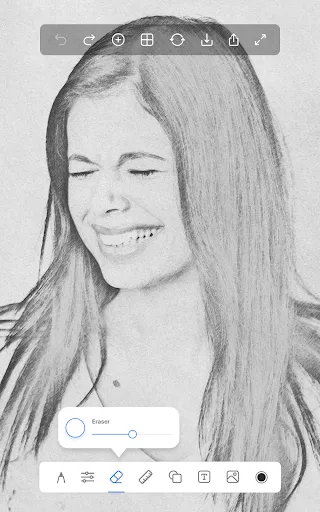
The app offers a wide variety of brush options, allowing users to experiment with different styles and techniques. Whether you prefer a classic pencil or a textured paintbrush, there's something to suit every artistic need, making it easy to bring your imagination to life.

Intuitive User Interface

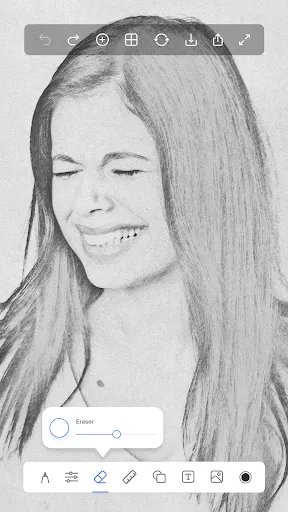
Drawing Apps: Draw, Sketch Pad boasts an intuitive user interface that makes it easy for both beginners and experienced artists to navigate. With simple tools and a clean layout, users can focus on their creativity without getting bogged down by complicated menus or settings.

Layer Management

The layer management feature enables artists to work with multiple elements in their designs seamlessly. By allowing you to add, delete, or adjust layers, it provides greater control over your artwork, making complex compositions easier to handle.

Pros & Cons

Pros
  • Enhances creativity with versatile drawing tools
  • User-friendly interface for all skill levels
  • Easy sharing options for your artwork
  • Unlimited canvas space for endless possibilities
  • Regular updates improve features and usability
Cons
  • Limited features compared to professional software.
  • Difficult to achieve precise control on touchscreens.
  • May drain device battery quickly during use.
  • Can lack advanced tools for detailed artwork.

Real Experience Using Drawing Apps: Draw, Sketch Pad

Application Scenarios

The "Drawing Apps: Draw, Sketch Pad" offers a versatile platform suitable for various scenarios, ranging from casual doodling to professional-grade artwork. Whether you're an aspiring artist looking to practice your skills, a student needing to create visual aids for projects, or a professional designer sketching out ideas on the go, this app caters to all. Its intuitive interface allows users to seamlessly transition between different styles of drawing, making it ideal for anyone from hobbyists to seasoned illustrators. Moreover, the app supports a variety of file formats, enabling users to share their creations across social media platforms or collaborate with others in a creative space.

User Experience

The user experience of "Drawing Apps: Draw, Sketch Pad" is remarkably fluid and engaging. Upon opening the app, users are greeted with a clean, simple interface that prioritizes creativity over complexity. The toolbar is well-organized, offering a plethora of brushes, colors, and textures, allowing for extensive customization. Advanced features, such as layers and undo/redo options, enhance the drawing experience, making it easy to experiment without the fear of making irreversible mistakes. Feedback from users highlights the app’s responsiveness, particularly on touchscreen devices, which allows for smooth and precise strokes. Additionally, the app provides helpful tutorials for beginners, making it easy to get started, while also offering advanced tools for more experienced users to explore their creativity fully.

Pricing

Updates & Support The developers of "Drawing Apps: Draw, Sketch Pad" are committed to continuous improvement, regularly releasing updates that introduce new features, enhance performance, and fix bugs. Users can easily access the latest version through app stores, ensuring they benefit from the most up-to-date functionalities. Moreover, the support system is commendable, offering comprehensive FAQs, tutorial videos, and a responsive customer service team. Users can reach out for assistance via email or through the app's feedback feature, ensuring that any issues encountered are addressed promptly. Overall, the commitment to support and updates contributes significantly to a positive user experience.

verified Security & Privacy Review

Security & Privacy Review Drawing Apps: Draw, Sketch Pad prioritizes user security and privacy, ensuring a safe environment for creativity. The app employs robust encryption protocols to protect all user-generated content and personal data, minimizing the risk of unauthorized access. The app requires minimal permissions, limiting access to only what is necessary for its functionality. Users are prompted to grant permissions for storage access to save and share their artwork, with no excessive data collection beyond these needs. Importantly, the app does not track user activity or gather sensitive information, such as location data or contact lists, which enhances user privacy. Additionally, the app provides clear privacy policies that outline data handling practices, ensuring transparency. Users can easily access these policies within the app, allowing them to make informed decisions about their data. Overall, Drawing Apps: Draw, Sketch Pad demonstrates a commitment to maintaining user privacy while offering a secure platform for artistic expression.

Reviews

4

“Intuitive interface makes drawing enjoyable and easy.”

“Great variety of tools for creative expression.”

“Perfect for both beginners and experienced artists.”

“Regular updates keep the app fresh and functional.”

“Export options are versatile and user-friendly.”

FAQ

1

Does Drawing Apps: Draw, Sketch Pad collect my personal data?

Drawing Apps: Draw, Sketch Pad may collect certain personal data as outlined in its privacy policy, but it typically prioritizes user privacy and does not share personal information without consent.

2

Does Drawing Apps: Draw, Sketch Pad offer a free trial or free version?

Yes, Drawing Apps: Draw, Sketch Pad offers a free version with limited features, as well as a free trial for users interested in exploring premium features before committing to a subscription.

3

Does Drawing Apps: Draw, Sketch Pad require an internet connection?

No, Drawing Apps: Draw, Sketch Pad can be used offline, allowing you to create and save your artwork without needing an internet connection. However, some features may require connectivity for updates or sharing.

4

How can I contact support or send feedback for Drawing Apps: Draw, Sketch Pad?

You can contact support or send feedback via the app's support section, which may include options such as email, in-app messaging, or a dedicated support website.

5

How do I manage or cancel my Drawing Apps: Draw, Sketch Pad subscription?

You can manage or cancel your subscription through your account settings within the app or through the app store where you purchased the subscription. Instructions are typically provided in the app’s help section.

How to use Drawing Apps: Draw, Sketch Pad

1

How can I contact customer service for the Draw app?

You can reach customer service for the Draw app via the support section in the app or their official website. Look for a "Contact Us" option.

2

How can I reset my password for the Draw app?

To reset your password for the Draw app, click on "Forgot Password" at the login screen and follow the instructions sent to your email.

3

How do I log in to the Draw app?

To log in to the Draw app, open the app, tap on the "Log In" button, and enter your credentials. If you don't have an account, you can create one easily.

4

Is there a way to activate premium features in the Sketch Pad app?

Yes, to activate premium features in the Sketch Pad app, go to the settings menu and select "Upgrade to Premium." Follow the prompts for payment.

5

What is the customer number for the Sketch Pad app?

The customer number for the Sketch Pad app can be found in the app's settings under "Help" or on their official website.

Editor's Choice