This site uses cookies to enhance your user experience. By clicking any link on this site you are giving your consent to our cookie policy. Read more
Reject
Accept All

Advertiser and Editorial Disclosures

Cast Phone to TV, Chromecast

Cast Phone to TV, Chromecast

verified Verified App

Developer: Generation z apps

  • category

    Category: Business

  • price

    Price: 0

  • age rating

    Age Rating: Everyone

  • rating

    Rating: 3.9

  • download

    Downloads: /

  • version

    Version: 1.3.2

Screenshot 1
Screenshot 2
Screenshot 3
Screenshot 4
Screenshot 5
Screenshot 6
Screenshot 7
Screenshot 8

Features & Highlights

High-Quality Streaming

Experience stunning visuals and crisp audio with high-quality streaming capabilities. Cast Phone to TV, Chromecast ensures that your content is delivered in the best possible quality, turning your living room into a mini-theater for an immersive entertainment experience.

Multiple Device Support

Cast Phone to TV, Chromecast allows you to connect multiple devices simultaneously, making it perfect for gatherings. Switch between smartphones and tablets with ease, ensuring everyone can join in on the fun and share their favorite media without hassle.

Seamless Casting

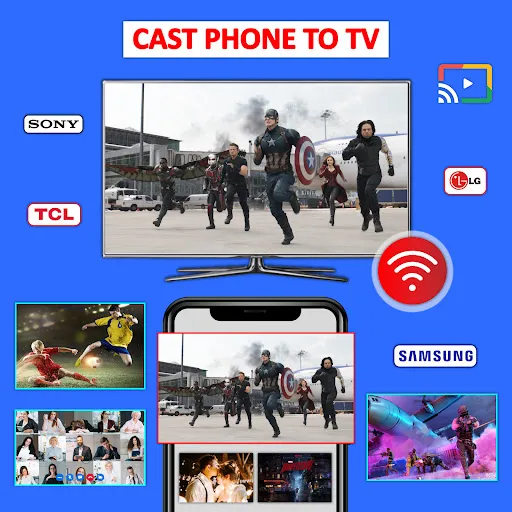
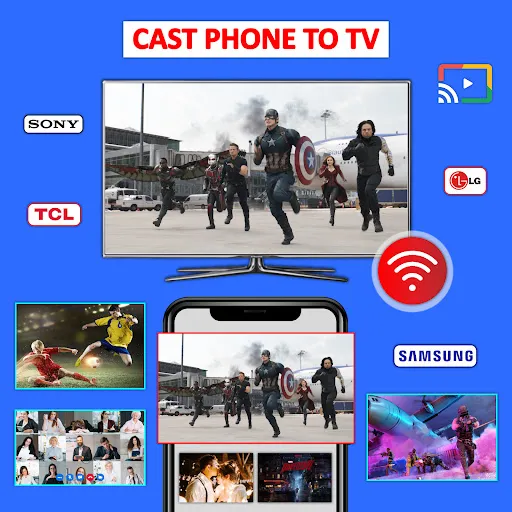
Easily cast your favorite content from your smartphone to any compatible TV with Chromecast. Whether it's videos, music, or photos, enjoy a seamless viewing experience without any lag, allowing you to share moments with friends and family effortlessly.

User-Friendly Interface

The app features an intuitive interface that makes navigating your media library a breeze. With just a few taps, you can find and cast your desired content, making it accessible for users of all ages, even those who might not be tech-savvy.

Pros & Cons

Pros
  • Easily stream content from your phone to TV
  • Access a wide range of apps and services
  • Enjoy high-quality video and audio playback
  • Control playback directly from your mobile device
  • Share photos and videos with friends on a big screen
Cons
  • Limited app compatibility restricts content options
  • Connection issues can disrupt streaming quality
  • Requires Wi-Fi, limiting portability and flexibility
  • Potential lag affects real-time activities like gaming

Real Experience Using Cast Phone to TV, Chromecast

Application Scenarios

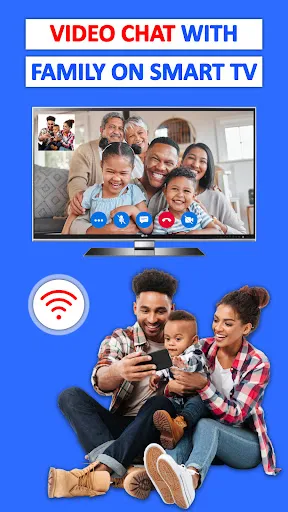
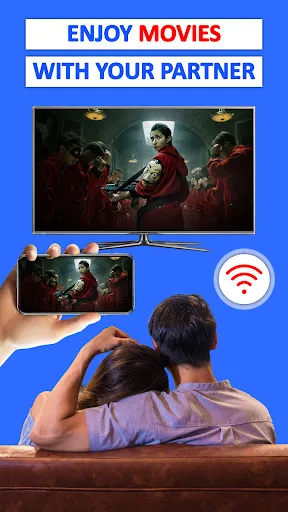
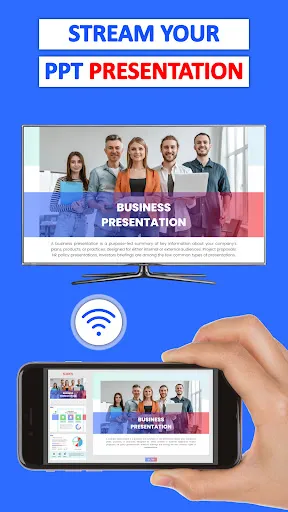
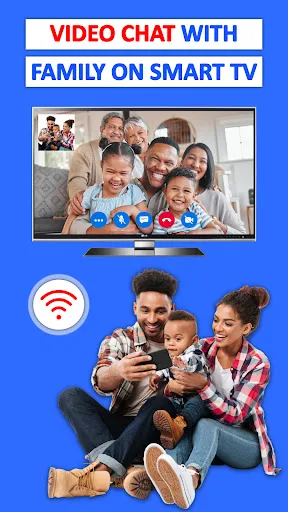
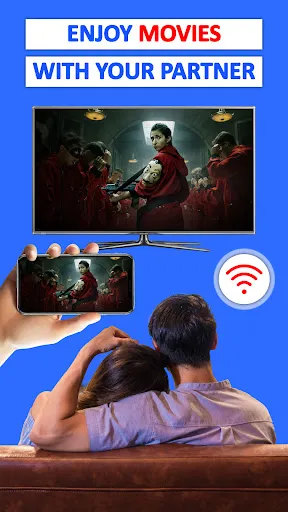
The "Cast Phone to TV, Chromecast" app serves a multitude of scenarios that cater to different user needs. Whether you are looking to stream your favorite movies and series, display your vacation photos, or even present a slideshow for a business meeting, this app has you covered. It allows users to effortlessly mirror their smartphones to smart TVs, making it a perfect companion for family movie nights or sharing memorable moments with friends. Additionally, it supports various streaming platforms, which means you can enjoy content from popular services without the need for additional devices. The convenience of casting a video call or a live stream to a larger screen for better visibility adds another layer of utility, especially for educational purposes or remote work settings. Overall, the versatility of the app makes it suitable for both casual users and professionals alike.

User Experience

User experience is a highlight of the "Cast Phone to TV, Chromecast" app. The interface is designed to be intuitive, allowing even the least tech-savvy individuals to navigate through its features with ease. Upon opening the app, users are greeted with a clean layout that clearly displays all available devices for casting. The connection process is generally seamless, enabling quick pairing with minimal lag. Users have reported high-quality video and audio output, which enhances the overall viewing experience. Furthermore, the app offers customization options for resolution and aspect ratio, ensuring that users can adapt the output to suit their screen preferences. However, occasional connectivity issues have been noted, usually resolved by restarting the app or the connected device. Overall, the user experience is largely positive, with many users praising its reliability and ease of use.

Pricing

Updates & Support The developers of "Cast Phone to TV, Chromecast" are committed to providing regular updates to improve functionality and user experience. Users can expect frequent patches that address bugs, enhance performance, and introduce new features based on user feedback. The support system is also commendable; users can access help through a dedicated FAQ section, community forums, and direct customer support options. Many users have reported quick response times when reaching out for assistance. Overall, the combination of regular updates and responsive support makes this app a reliable choice for anyone looking to cast content from their mobile devices to their TVs.

verified Security & Privacy Review

The app "Cast Phone to TV, Chromecast" prioritizes user security and privacy through its straightforward handling of permissions and data. It requires minimal access to device features, typically limited to network connectivity, which is essential for casting functionalities. This approach helps mitigate potential vulnerabilities associated with excessive permissions. Data transmitted between the app and the casting devices is encrypted, ensuring that personal information remains secure during use. The app does not store user data on its servers, which further enhances privacy by reducing the risk of unauthorized access to sensitive information. Users are encouraged to review the app's privacy policy, which transparently outlines data collection practices and the measures in place to protect user information. Overall, "Cast Phone to TV, Chromecast" demonstrates a commitment to safeguarding user privacy while providing a seamless casting experience.

Reviews

3.9

“Easy setup and great streaming quality!”

“Works perfectly with my Chromecast device.”

“Love the ability to cast from multiple apps.”

“User-friendly interface, highly recommend!”

“Occasional lag, but overall a solid experience.”

FAQ

1

Does Cast Phone to TV, Chromecast collect my personal data?

Cast Phone to TV, Chromecast may collect certain personal data to enhance user experience and improve services, but it adheres to privacy regulations and provides options for users to manage their data.

2

Does Cast Phone to TV, Chromecast offer a free trial or free version?

Yes, Cast Phone to TV, Chromecast often offers a free version with limited features, as well as a free trial period for users to explore premium features before committing to a subscription.

3

Does Cast Phone to TV, Chromecast require an internet connection?

Yes, Cast Phone to TV, Chromecast typically requires an internet connection to stream content, as it relies on the internet to access media from various platforms.

4

How can I contact support or send feedback for Cast Phone to TV, Chromecast?

You can contact support or send feedback for Cast Phone to TV, Chromecast by accessing the app's help section or visiting the official website for customer support options.

5

How do I manage or cancel my Cast Phone to TV, Chromecast subscription?

You can manage or cancel your Cast Phone to TV, Chromecast subscription through the app's settings or your app store account settings, depending on how you subscribed.

How to use Cast Phone to TV, Chromecast

1

Can I use Chromecast without Wi-Fi?

Yes, you can use Chromecast without Wi-Fi by enabling Guest Mode or using a mobile hotspot. Make sure your devices are compatible with these options.

2

How can I cast my phone to my TV?

To cast your phone to your TV, ensure both devices are connected to the same Wi-Fi network. Open a compatible app and tap the cast icon. Select your TV from the list.

3

How do I activate my Chromecast device?

To activate your Chromecast, plug it into your TV and power source. Open the Google Home app, select 'Add,' then 'Set up device.' Follow the on-screen instructions to complete the activation.

4

How do I log in to the Chromecast app?

Open the Google Home app, tap on your profile icon, and select 'Settings.' Under 'Linked accounts,' log in with your Google account to access Chromecast features.

5

How do I reset my Chromecast?

To reset your Chromecast, hold down the button on the device for about 25 seconds until the LED light flashes. Release the button to complete the reset.

Editor's Choice